• Pricing
  • FAQ
  • Contact

niimbl is the classroom companion for Ontario K-8 teachers: attendance, gradebook, curriculum tracking, and report cards in one calm, fast workspace.

© Copyright 2026 niimbl. All Rights Reserved.

About
  • Contact
Product
  • Pricing
  • FAQ
  • How-to guides
Legal
  • Terms of Service
  • Privacy Policy
  • Cookie Policy

Add an event to the calendar

How-to guide

All how-to guides

Open Calendar and press "Add Event". Give it a name, pick when it happens and press "Create Event".

Open niimbl

Step by step

  1. 1

    In the left panel, under Planning, open Calendar.

  2. 2

    Press "Add Event".

  3. 3

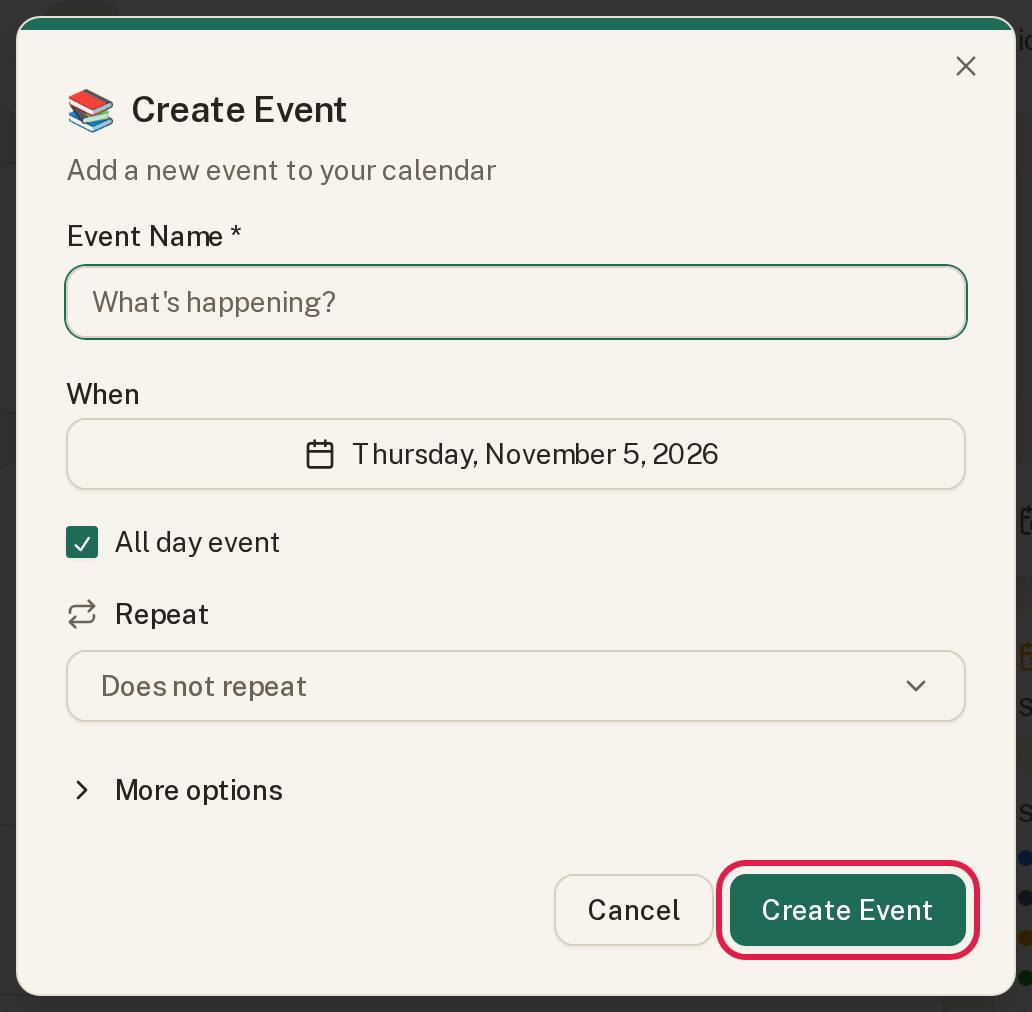
    Type the Event Name and pick the day under When. It starts as an "All day event" — untick that to give it a time. Repeat makes it happen every week.
  • 4

    "More options" holds the rest (a type, a place, notes). Press "Create Event" to save it.

    The Create Event box: Event Name, When, All day event and Repeat.
  • Related guides

    Plan your weekSet up your timetable